Back to TheWorxHub for Senior Living Main Menu
Meter Readings
Watch the Video Tutorial:
From a Work Order
- Find and tap to open the work order that requires a meter reading.
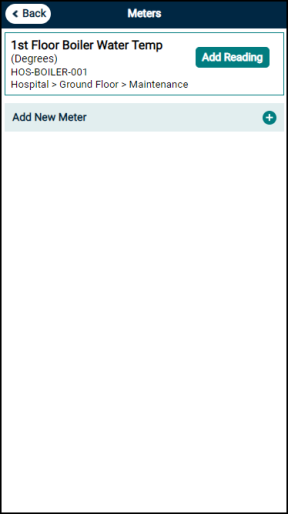
- Tap on Meters.
- Tap Add New Meter.
- Select the Meter(s) that need to be added to the work order then tap Done.
- Tap the Add Reading button to add the reading
- Enter the reading data and tap Done.
From the Actions Menu
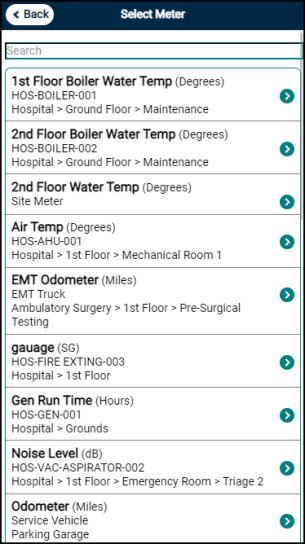
- From the Actions section of the Dashboard, tap on Add New Meter Reading.
- Tap the meter you would like to add a reading to.
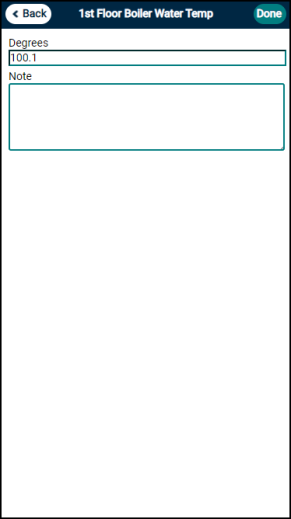
- Enter the reading data, such as Hours, Miles, or Degrees.
- Enter information into the Notes field, if needed.
- Tap Done.
Corrective Work Orders generated from failed meter readings
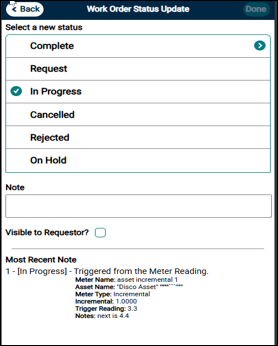
When a meter reading falls outside the designated range or exceeds the set increment, TheWorxHub automatically generates a Corrective Work Order — provided a meter-based or meter/time-based Scheduled Work Order has been configured. The Corrective Work Order shows the triggering meter details directly in the Work Order Status page, so administrators can identify the cause without navigating elsewhere for meter details.
To view meter details on a Corrective Work Order:
-
Open the Corrective Work Order.
-
Click the Status Panel to expand it.
-
Review the meter details listed under the Most Recent Note > Triggered from the Meter Reading.
-
Meter Name — The name of the meter that recorded the out-of-range reading.
-
Asset Name — The asset linked to the meter, if applicable.
-
Meter Type — The type of meter (e.g., Threshold or Incremental).
-
Range / Incremental — The configured threshold range or incremental value set for the meter.
-
Trigger Reading — The specific reading that caused the Corrective Work Order to be generated.
-
Notes — Any notes entered at the time the reading was recorded, if applicable.
-
